

This year we are using the Cvent Events Mobile app to provide better access to the program at AHG 2026.

What You Can Do in the App
- Browse the full agenda and build a personal schedule.
- Find session rooms, speakers, handouts, and slides.
- Message other attendees and book 1:1 meetings.
- Join discussion threads to organize social lunches and groups.
- Submit feedback through session surveys.
- See Exhibitors and Sponsors.
- Get live updates from the organizers.
Quick Start
Select the link below on your mobile phone or scan the QR code from your mobile device to download and open the CVENT Events app. Log in with the email you registered with. (Important: You will be sent a 6-digit verification code. If you don’t see it, check your spam folder. Codes do expire!)
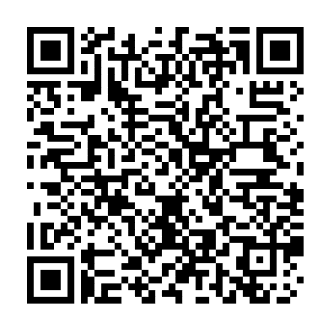
Accessing the App via App Stores
If you prefer to download the app manually, use the direct links below for your device:
- Download CVENT Events from the Apple App Store (iPhone).
- Download CVENT Events from the Google Play Store (Android).
- Once downloaded, open the app and use the search bar to type in “Accessing Higher Ground 2026”.
- Tap on AHG when it appears in the results.
- Tap the profile/log in icon (or go to the log in prompt).
- Enter your First Name, Last Name, and the Email Address you used to register for the event.
- Check your email or texts for a 6-digit verification code. (Important: If you don’t see the code within a few minutes, check your junk or spam folder. Codes do expire!)
- Type in the code to log in and access AHG 2026!
Step 1: Find your event and log in
There is no password: you log in with your name and the email you registered with, then type in a one-time code sent by email and mobile. (Important: Always check your spam or junk folder if your 6-digit code doesn’t arrive immediately, as the codes will expire.)
Step 2: Get around the app
Four tabs along the bottom of the screen take you everywhere; the quick-link pills at the top of the Home screen are shortcuts to the most-used pages.
Other Features
Build your schedule
- Tap Schedule at the bottom, then All Sessions at the top. (Look out for our new 45-minute interactive breakout sessions!)
- Tap a session to see its description, speakers, room, and any slides or handouts. (The handouts icon is at the top right of the session detail page.)
- Tap the + (Add) icon next to a session to add it to My Schedule.
- Note: If you already selected another session in a time block, you will be prompted to ‘switch.’
Provide Session Feedback
- Please provide feedback on the sessions you attend! You can complete session surveys directly in the CVENT app by adding the session to your schedule. (Note: You can still add a session to your schedule even after it has ended.)
- Alternatively, you can use the direct survey link located on the main conference website.
Coordinate Social Lunches and Discussions
- Info on Social Lunches: Keep an eye on the app’s Discussions section. Organizers will be setting up official threads for specific restaurants and group leaders so you can easily jump in and coordinate lunches with fellow attendees.
Message another attendee
- On Home, tap Attendees, then the magnifying glass to search by name.
- Open their profile and tap Message. (Note for speakers: Rest assured, your personal phone numbers are not visible in the Attendee Hub.)
Support and Questions
If you have any technical inquiries or need help getting into the app, please email ahg@ahead.org.
Enjoy the event!